> Documentation index: [Saleor](/llms.txt) · [This section](/developer/llms.txt)
> Source: https://docs.saleor.io/developer/app-store/apps/adyen/storefront
# Storefront Integration
The Adyen App can be used to process payments using the Adyen API. By using Saleor's standard GraphQL payment APIs, one can interact with Adyen to authorize, capture, refund, and cancel payments.
## Getting payment gateways
The first step is to fetch the Checkout object including [`availablePaymentGateways`](/api-reference/checkout/objects/checkout.md#available-payment-gateways) field. The `availablePaymentGateways` field contains a list of payment gateways available for given checkout. The Adyen App should be one of the payment gateways available in the list. Its `id` is [`app.saleor.adyen`](https://adyen.saleor.app/api/manifest) - defined in app's manifest.
```graphql
query {
checkout(id: "Q2hlY2tvdXQ6YWY3MDJkMGQtMzM0NC00NjMxLTlkNmEtMDk4Yzk1ODhlNmMy") {
availablePaymentGateways {
id
name
}
}
}
```
The response:
```json
{
"data": {
"checkout": {
"availablePaymentGateways": [
{
"id": "app.saleor.adyen",
"name": "Adyen"
}
]
}
}
}
```
note
`availablePaymentGateways` may contain other Payment Apps as well as [legacy Plugins](/developer/extending/plugins/payment-gateways.md) configured in the Dashboard. You should ignore the ones that you don't want to use for a specific checkout.
## Obtaining Adyen payment methods
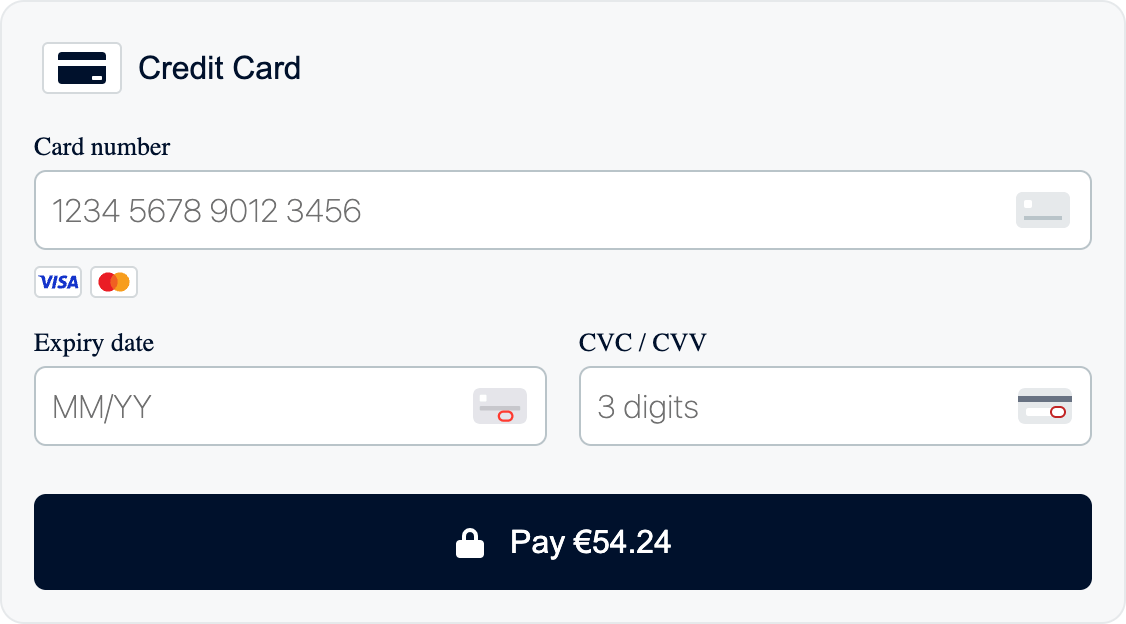
Next, you need to fetch configured payment methods from Adyen. To do that, use the [`paymentGatewayInitialize`](/api-reference/payments/mutations/payment-gateway-initialize.md) mutation. The mutation returns an `PaymentGatewayInitialize` object with `data` field containing a list of payment methods. The `data` field is an object with the following fields:
```ts
{
paymentMethodsResponse: PaymentMethodsResponse;
clientKey: string;
environment: "LIVE" | "TEST";
errors?: SyncWebhookAppErrors;
}
```
Where `PaymentMethodsResponse` is the result of calling Adyen's `/paymentMethods` endpoint and is described in the [Adyen documentation](https://docs.adyen.com/api-explorer/Checkout/latest/post/paymentMethods.mdx#responses-200). `SyncWebhookAppErrors` is [described below](#error-handling).
If `errors` field doesn't exist or is an empty array, `paymentMethodsResponse`, `clientKey` and `environment` should be used to initialize [Adyen Drop-in](https://docs.adyen.com/online-payments/web-drop-in/additional-use-cases/advanced-flow).
```graphql
mutation {
paymentGatewayInitialize(
id: "Q2hlY2tvdXQ6YWY3MDJkMGQtMzM0NC00NjMxLTlkNmEtMDk4Yzk1ODhlNmMy"
amount: 54.24
paymentGateways: [{ id: "app.saleor.adyen" }]
) {
gatewayConfigs {
id
data
errors {
field
message
code
}
}
errors {
field
message
code
}
}
}
```
The response:
```json
{
"data": {
"paymentGatewayInitialize": {
"gatewayConfigs": [
{
"id": "app.saleor.adyen",
"data": {
"paymentMethodsResponse": {
"paymentMethods": [
{
"brands": ["visa", "mc"],
"name": "Credit Card",
"type": "scheme"
}
]
},
"clientKey": "test_AHSJKADHK12731KDSALD11DSADASA003",
"environment": "TEST"
},
"errors": []
}
],
"errors": []
}
}
}
```
tip
For instructions on how to add, remove or constraint payment methods from Adyen, please consult the [Adyen payment methods documentation](https://docs.adyen.com/payment-methods).
## Paying with Adyen
After a user has interacted with the Adyen Drop-in and entered payment details, [Drop-in event data along with other information](https://docs.adyen.com/online-payments/web-drop-in/additional-use-cases/advanced-flow#step-3-make-a-payment) should be passed to the [`transactionInitialize`](/api-reference/payments/mutations/transaction-initialize.md) mutation as the `paymentGateway.data` field. The mutation returns the `TransactionInitialize` object with a `data` field containing the following fields:
```ts
{
paymentResponse: PaymentResponse;
errors?: SyncWebhookAppErrors;
}
```
Where `PaymentResponse` is the result of calling Adyen's `/payments` endpoint and is described in the [Adyen documentation](https://docs.adyen.com/api-explorer/Checkout/latest/post/payments#responses-200). `SyncWebhookAppErrors` is [described below](#error-handling).
If the `errors` field doesn't exist or is an empty array, pass the `paymentResponse` to Adyen Drop-in. The Drop-in will handle the response and display the result to the user or require additional actions to proceed.
```graphql
mutation AdyenTransactionInitialize($data: JSON!) {
transactionInitialize(
id: "Q2hlY2tvdXQ6YWY3MDJkMGQtMzM0NC00NjMxLTlkNmEtMDk4Yzk1ODhlNmMy"
action: AUTHORIZATION
amount: 54.24
paymentGateway: { id: "app.saleor.adyen", data: $data }
) {
transactionEvent {
pspReference
amount {
amount
currency
}
type
}
data
errors {
field
message
code
}
}
}
```
Where `$data` is the object provided by Adyen Drop-in in the `onSubmit` (Web, React Native), `didSubmit` (iOS) or `makePaymentsCall` (Android) callback. Specifically, the following fields may be passed inside the `$data`:
- `paymentMethod` (required)
- `browserInfo` (required in browsers)
- `returnUrl` (required for some payment methods)
- `origin` (optional)
- `channel` (optional, `"Web"` by default)
- `order` (optional)
note
Moreover, Saleor Adyen App automatically provides the following fields to Adyen:
- `reference`
- `shopperReference`
- `additionalData.manualCapture (when action is authorization)`
- `merchantAccount`
- `countryCode`
- `shopperLocale`
- `amount`
- `authenticationData.threeDSRequestData.nativeThreeDS` (`"preferred"`)
- `metadata` (`{ transactionId, channelId, checkoutId, orderId }`)
- `lineItems`
- `shopperEmail`
- `shopperName`
- `telephoneNumber`
- `deliveryAddress`
- `billingAddress`
- `company.name`
Response:
```json
{
"data": {
"transactionInitialize": {
"transactionEvent": {
"pspReference": "XXXX9XXXXXXXXX99",
"amount": {
"amount": 54.24,
"currency": "EUR"
},
"type": "AUTHORIZATION_SUCCESS"
},
"data": {
"paymentResponse": {
"additionalData": {
"paymentMethod": "visa"
},
"amount": {
"currency": "EUR",
"value": 5424
},
"merchantReference": "SOME_MERCHANT_ID_",
"paymentMethod": {
"brand": "visa",
"type": "scheme"
},
"pspReference": "XXXX9XXXXXXXXX99",
"resultCode": "Authorised"
}
},
"errors": []
}
}
}
```
## Performing additional actions (_optional_)
Optionally, additional actions may be required: authentication of payment with 3D Secure, scan of a QR code, or logging in to the bank to complete the payment. In this case, [`transactionProcess`](/api-reference/payments/mutations/transaction-process.md) mutation should be used.
```graphql
mutation AdyenTransactionProcess($id: ID!, $data: JSON) {
transactionProcess(id: $id, data: $data) {
transaction {
id
actions
}
transactionEvent {
message
type
}
data
errors {
field
code
message
}
}
}
```
Where `$data` is the object provided by Adyen Drop-in in the `onAdditionalDetails` (Web, React Native), `didProvide` (iOS) or `makeDetailsCall` (Android) callback. The response is similar to the one from `transactionInitialize` but the `data` field has a different shape:
```ts
{
paymentDetailsResponse: PaymentDetailsResponse
errors?: SyncWebhookAppErrors;
}
```
`PaymentDetailsResponse` is the result of calling Adyen's `/payments/details` endpoint and is described in the [Adyen documentation](https://docs.adyen.com/api-explorer/Checkout/latest/post/payments/details#responses-200). `SyncWebhookAppErrors` is [described below](#error-handling).
If the `errors` field doesn't exist or is an empty array, pass the `paymentDetailsResponse` back to Adyen Drop-in. The Drop-in will handle the response and display the result to the user or again require additional actions to proceed.
Repeat the step until the payment is successful or fails.
caution
Many payment methods are not settled synchronously. Sometimes it takes seconds, minutes, hours, or even days for a payment to go through. Adyen App will automatically handle Adyen webhook notifications and create transaction events in Saleor (see [`transactionEventReport`](/api-reference/payments/mutations/transaction-event-report.md)).
## Apple Pay `onValidateMerchant`
To implement Apple Pay integration through Adyen and use your own Apple Pay certificate, you must implement `onValidateMerchant` (Web, React Native) or `onvalidatemerchant` (iOS). The Adyen Saleor App provides a way to validate the merchant using the `paymentGatewayInitialize` mutation:
```graphql
mutation PaymentGatewayInitialize($checkoutId: ID!, $data: JSON) {
paymentGatewayInitialize(
paymentGateways: [{ id: "app.saleor.adyen", data: $data }]
id: $checkoutId
) {
gatewayConfigs {
id
data
errors {
field
message
code
}
}
errors {
field
message
code
}
}
}
```
and provide the following JSON in `$data`:
```json
{
"action": "APPLEPAY_onvalidatemerchant",
"validationURL": "…",
"domain": "…",
"merchantIdentifier": "…",
"merchantName": "…"
}
```
All the parameters should be provided according to [Apple Pay documentation on the Adyen website](https://docs.adyen.com/payment-methods/apple-pay/web-drop-in?tab=_code_payments_code__2#page-introduction).
## Additional endpoints (optional)
To use some payment methods inside Adyen Drop-in you may have to implement the following callbacks:
- `onBalanceCheck` (Web, React Native), `checkBalance` (iOS) or `checkBalance` (Android)
- `onOrderRequest` (Web, React Native), `requestOrder` (iOS) or `createOrder` (Android)
- `onOrderCancel` (Web, React Native), `cancelOrder` (iOS) or `cancelOrder` (Android)
For example, these methods are required for [Gift card split-payments](https://docs.adyen.com/payment-methods/gift-cards/web-drop-in?tab=config-payments_2#required-configuration).
note
Adyen's orders and requests for balance checks are not saved in Saleor. Each payment linked to Adyen's order will be stored as a separate transaction in Saleor.
Orders link transactions on the Adyen level. For example, if a user cancels an order (by removing gift card payment inside the Drop-in), every payment linked to that order will be refunded or voided.
### `onBalanceCheck`
To call the `/paymentMethods/balance` endpoint use the `paymentGatewayInitialize` mutation:
```graphql
mutation PaymentGatewayInitialize($checkoutId: ID!, $data: JSON) {
paymentGatewayInitialize(
paymentGateways: [{ id: "app.saleor.adyen", data: $data }]
id: $checkoutId
) {
gatewayConfigs {
id
data
errors {
field
message
code
}
}
errors {
field
message
code
}
}
}
```
and provide the following JSON in `$data`:
```json
{
"action": "checkBalance",
"paymentMethod": {
"type": "giftcard",
"brand": "givex",
"encryptedCardNumber": "...",
"encryptedSecurityCode": "..."
}
}
```
The contents of the `paymentMethod` field come from the Adyen Drop-in.
Example `onBalanceCheck` implementation in TypeScript could look like this (depending on your GraphQL client):
```ts
async onBalanceCheck(resolve, reject, data) {
const {
paymentGatewayInitialize: { gatewayConfigs },
} = await client.request(PaymentGatewayInitialize, {
checkoutId,
data: { action: "checkBalance", paymentMethod: data.paymentMethod },
});
const response = gatewayConfigs[0].data.giftCardBalanceResponse;
resolve(response);
}
```
note
Error handling is intentionally omitted for brevity.
The response received from Saleor with data from the Adyen app will be:
```json
{
"data": {
"paymentGatewayInitialize": {
"gatewayConfigs": [
{
"id": "app.saleor.adyen",
"data": {
"giftCardBalanceResponse": {
"balance": {
"currency": "EUR",
"value": 5000
},
"pspReference": "BK4C…NN82",
"resultCode": "NotEnoughBalance"
}
}
}
]
}
}
}
```
### `onOrderRequest`
Similarly to `onBalanceCheck`, to call the `/orders` endpoint use the `paymentGatewayInitialize` mutation and pass the following `$data`:
```json
{
"action": "createOrder"
}
```
The `onOrderCreate` implementation in TypeScript could look like this (depending on your GraphQL client):
```ts
async onOrderCreate(resolve, reject, data, amount) {
const {
paymentGatewayInitialize: { gatewayConfigs },
} = await client.request(PaymentGatewayInitialize, {
id: checkoutId,
amount: amount,
data: { action: "createOrder" },
});
const response = gatewayConfigs[0].data.orderCreateResponse;
resolve(response);
}
```
The response received from Saleor with data from the `/orders` endpoint will be:
```json
{
"data": {
"paymentGatewayInitialize": {
"gatewayConfigs": [
{
"id": "app.saleor.adyen",
"data": {
"orderCreateResponse": {
"amount": {
"currency": "EUR",
"value": 12000
},
"expiresAt": "2023-07-04T11:34:02Z",
"orderData": "...",
"pspReference": "W...82",
"reference": "5f0d76d5-aaed-40d3-87ff-bd34d6849f95,Q2hhbm5lbDoy,'c'",
"remainingAmount": {
"currency": "EUR",
"value": 12000
},
"resultCode": "Success"
}
}
}
]
}
}
}
```
Once the order is created, you may complete the payment. Use the data received from the Drop-in inside the `onSubmit` method. It includes the `order` property - Adyen App will charge the customer with the amount specified in the order's data.
For example: if you have only 20 EUR left on a gift card, and the order's total amount is 50 EUR, `order` data will firstly charge the gift card with the available amount (20 EUR) and the 2nd payment method with the outstanding order amount (50 - 20 = 30 EUR).
warning
Adyen app uses a `pspReference` field internally to link the notifications from [`ORDER_CLOSED` Adyen webhook events](https://docs.adyen.com/api-explorer/Webhooks/latest/post/ORDER_CLOSED)
This field shouldn't be used by any external system, as it can change at any time without further notice.
#### Order amount for split payments
To properly implement split payments, you need to correctly pass `amount` to the `paymentGatewayInitialize` and `transactionInitializeSession` mutations. You should calculate what amount is left to pay to avoid overcharges.
For example, take a checkout worth $300. You want to pay:
- $100 with a custom payment method, like loyalty points (using custom gateway)
- $100 with a gift card (using Adyen)
- $100 with a credit card (using Adyen)
To do that, you need to first make a $100 transaction using the custom gateway, usually passing `amount` to `transactionInitializeSession`.
Then, there is $200 left to pay. Note that this is not the checkout/order total, but the remaining balance.
To proceed with Adyen split payment, you need to call `paymentGatewayInitialize` to create an order. Ensure you pass correct amount (another $100) to the mutation.
Last, you need to call `transactionInitializeSession` for the credit card - ensure you provide amount matching the remaining balance, not the checkout/order total, otherwise checkout will be overpaid.
For `paymentGatewayInitialize` Adyen App will:
- Take `amount` field if provided
- If not, will take `checkout.gross.amount` (or order) as a fallback
### `onOrderCancel`
Should be called when the user removes a payment method in a pending Adyen order, for example when there was already a partial charge for a gift card but the user decided to use a different payment method.
Canceling order in Adyen, automatically reports a new event on `TransactionItem` with it's `type` set to either `REFUND_REQUEST` (when charge flow was used) or `CANCEL_REQUEST` (when authorization flow was used). This is done in order to prevent order creation once the user requests a refund.
In case `TransactionItem` status cannot be updated, a request to Adyen won't be sent in order to prevent fraudulent orders.
To call the `/orders/cancel` endpoint, similarly to `onBalanceCheck`, use the `paymentGatewayInitialize` mutation and pass the following `$data`:
```json
{
"action": "cancelOrder",
"orderData": "..."
"pspReference": "..."
}
```
The response from that mutation will be:
```json
{
"data": {
"transactionProcess": {
"data": {
"orderCancelResponse": {
"pspReference": "...",
"resultCode": "Received"
}
}
}
}
}
```
#### Example
The `onOrderCancel` implementation in TypeScript could look like this (depending on your GraphQL client):
```ts
async onOrderCancel({order}) {
const {
paymentGatewayInitialize: { gatewayConfigs },
} = await client.request(PaymentGatewayInitialize, {
id: checkoutId,
data: {
action: "cancelOrder",
pspReference: order.pspReference,
orderData: order.orderData,
},
});
const response = gatewayConfigs[0].data.orderCancelResponse;
if (response.resultCode !== "Received") {
throw new Error("Cannot cancel order");
}
checkout.update({order: undefined});
}
```
## Error handling
The three mutations described above may return `data.errors` field. The existence of this field determines that the request was unsuccessful. `errors` is an array of `SyncWebhookAppError` objects. The `SyncWebhookAppError` object has the following fields:
```ts
{
code?: string;
message?: string;
details?: JSONObject;
}
```
The `code` field is a string identifying the error. One of the following values is allowed:
- `UnknownError`
- **`JsonSchemaError`**
- **`MissingSaleorApiUrlError`**
- **`MissingAuthDataError`** - when app was incorrectly installed / uninstalled and token to communicate with Saleor cannot be found
- **`HttpClientError`**
- **`InvalidDataError`** - when `data` field provided by storefront is invalid
note
This list may be extended in the future. Make sure your app handles unknown error codes.
The `message` field is a human-readable message describing the error.
The `details` field is an object containing additional information about the error. It will contain different fields, depending on error code.
### Adyen API errors
Error `details` will contain two fields:
- `errorCode` – [Adyen error code](https://docs.adyen.com/development-resources/error-codes)
- `statusCode` – [Adyen HTTP status code](https://docs.adyen.com/development-resources/response-handling)
Example:
```json
{
"data": {
"transactionInitialize": {
"transactionEvent": {
"pspReference": "",
"amount": {
"amount": 54.24,
"currency": "EUR"
},
"type": "AUTHORIZATION_FAILURE"
},
"data": {
"errors": [
{
"code": "HttpClientError",
"message": "HTTP Exception: 422. : Unable to decrypt data",
"details": {
"errorCode": "174",
"statusCode": 422
}
}
],
"paymentResponse": {}
},
"errors": []
}
}
}
```
### Incorrect input data
When making request with any `action` described in "Additional endpoints" section, app might return `errors` field with a list of payment methods, just like when making "Obtain Adyen payment methods" request, rather than performing the requested action. This might happen when `data` requested by storefront was in invalid format.
In that case a single `InvalidDataError` error will be included in `errors` array with `message` field that explains what went wrong and with `details` field that contains `fieldErrors` that describe error for each field required in the request:
```json
{
"data": {
"paymentGatewayInitialize": {
"gatewayConfigs": [
{
"id": "app.saleor.adyen",
"data": {
"paymentMethodsResponse": {
"paymentMethods": [
{
"brands": ["visa", "mc"],
"name": "Credit Card",
"type": "scheme"
}
]
},
"clientKey": "test_AHSJKADHK12731KDSALD11DSADASA003",
"environment": "TEST"
},
"errors": [
{
"code": "InvalidDataError",
"message": "Invalid action data was provided in PaymentGatewayInitializeSession request: orderData: Required, pspReference: Required. Please check documentation for required parameters",
"details": {
"formErrors": [],
"fieldErrors": {
"orderData": ["Required"],
"pspReference": ["Required"]
}
}
}
]
}
],
"errors": []
}
}
}
```
## Free orders
You may have use cases where you want to create free orders, such as free samples or free digital downloads. This may require skipping the payment step and completing the order without a transaction.
Adyen Drop-in integration does not support handling payments with a total amount of zero. Amount: 0, has a specific meaning in [Adyen](https://docs.adyen.com/get-started-with-adyen/payment-glossary/#zero-value-auth) - it allows payment method tokenization or to obtain other details from the merchant database.
## Storing user cards
Currently, the Adyen app **does not** support the functionality of storing user cards as a separate action. While cards can be stored automatically during regular payments, they cannot be saved without a transaction.
To enable card storage during a standard payment, the user must be signed in. App will send Saleor user id to Adyen as [`shopperReference`](https://docs.adyen.com/api-explorer/Checkout/latest/post/payments#request-shopperReference). Cards will not be stored for anonymous users.
Follow [stored card payments guide](https://docs.adyen.com/payment-methods/cards/web-drop-in/?tab=store-card-details-payment-methods_2) in Adyen docs for more information.